
Manage IP allowlists
Keep IP addresses in organisation-wide allowlists and use them to restrict access to the Kubernetes API and NodePorts of your clusters
An IP allowlist is a named list of IPv4 addresses that belongs to your organisation. You select IP allowlists on a cluster to decide who may reach its Kubernetes API and, separately, its NodePorts. Keep an address such as your office network or VPN in one place, and AME applies every change to all clusters that use the list.
Every member of the organisation can view the IP allowlists. Creating, changing and deleting them requires the Admin role in your organisation.
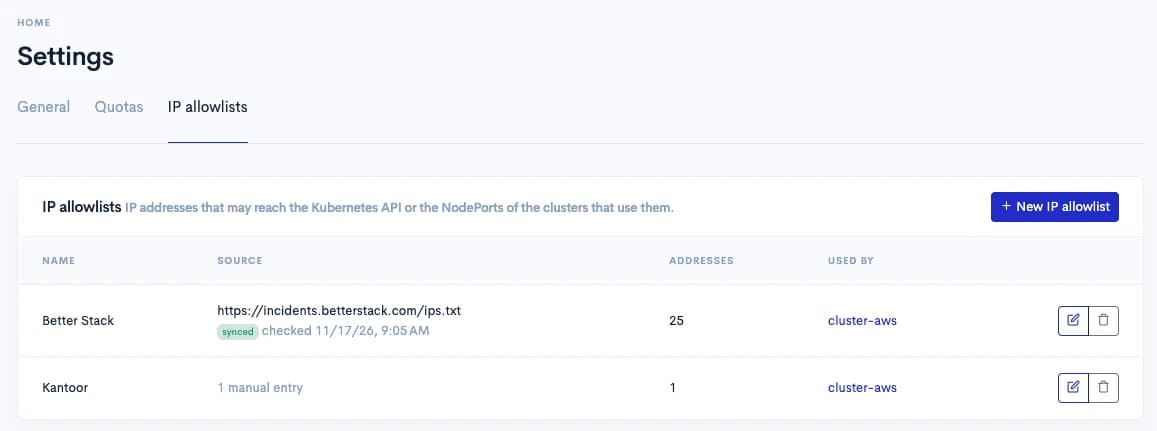
Create an IP allowlist
Open the IP allowlists
In the Avisi Cloud Console, go to Settings in the left navigation and open the IP allowlists tab.
Add a list
Click New IP allowlist, then enter a Name of at most 64 characters and, optionally, a Description.
Choose where the addresses come from
Under Addresses, select one of the two sources. An IP allowlist uses one source, not both.
- IP addresses: enter the addresses yourself. See enter IP addresses.
- Source URL: AME fetches the addresses from a URL every hour. See use a source URL.
Save
Click Save. The list is now available to every cluster in the organisation.
Enter IP addresses
Click + Add IP address for each address, and enter an IPv4 address or a CIDR block such as 203.0.113.0/24, with an optional description. AME stores a single IP address as /32, and a CIDR block as the network it covers: 203.0.113.7/24 becomes 203.0.113.0/24. A CIDR block can be at most /8.
An IP allowlist needs at least one address.
Use a source URL
A source URL suits a list that someone else maintains, such as the published IP addresses of an uptime monitoring provider. The URL must use HTTPS and return a plain text file with one IPv4 address or CIDR block per line:
# Monitoring probes
198.51.100.7
203.0.113.0/28
AME skips empty lines and lines that start with #, and ignores IPv6 addresses. Each CIDR block can be at most /16, and the file can hold at most 60 IP entries.
The owner of a source URL controls access to your clusters
AME applies the content of a source URL every hour, without an approval step. Whoever controls the URL decides which addresses can reach every cluster that uses the IP allowlist. Only use a source you trust as much as your own administrators, such as the published list of a monitoring provider you already rely on.
Enter the URL and click Preview. The preview shows the addresses the URL provides, the number of IPv6 addresses AME ignores, and any lines that keep the list from being saved. You can only save after a successful preview.
When you save, AME fetches the URL again and rejects the save if the fetch fails or the content is not valid.
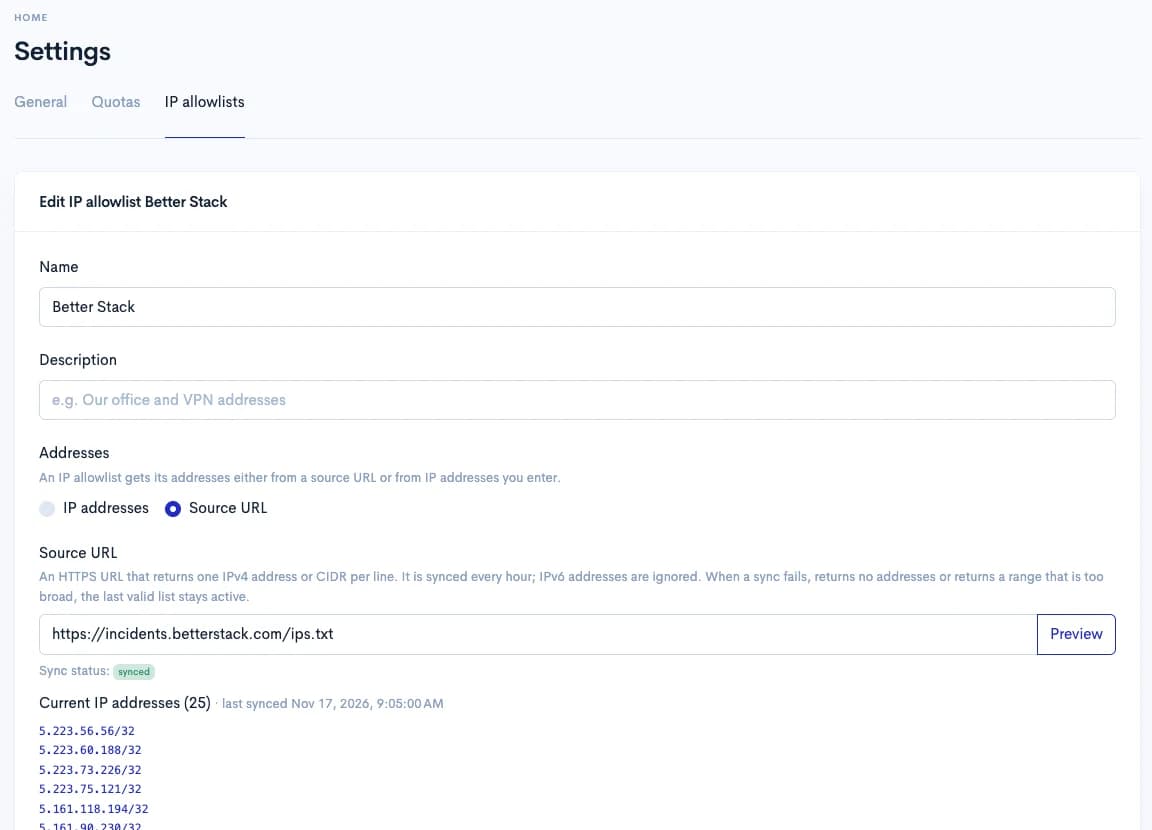
Sync status
AME fetches every source URL once an hour. The edit page lists the addresses the URL currently provides, and a badge next to the list shows the result of the last fetch:
| Status | Meaning |
|---|---|
| synced | AME fetched the URL and uses its addresses. |
| sync pending | AME has not fetched the URL yet. Clusters cannot select the list until it has addresses. |
| sync failed | AME could not fetch the URL, for example because of a network error, a timeout or an HTTP error. |
| sync rejected | The URL returned content AME does not accept: a line that is not an IPv4 address or CIDR block, no addresses, a CIDR block broader than /16, more than 60 IP entries, or more IP entries than a cluster that uses the list allows. |
When a fetch fails or is rejected, the last valid list stays active, so a broken URL never removes access from your clusters. Hover over the badge to see the reason.
Use an IP allowlist on a cluster
Open the cluster, go to the Networking tab and select Firewalling. Each kind of access has its own selection:
- Kubernetes API: see restrict API server access by IP address.
- NodePort access: see NodePort access.
An IP allowlist you select for the Kubernetes API does not open the NodePorts, and an IP allowlist you select for the NodePorts does not open the Kubernetes API. This lets you give a service such as an uptime monitor access to a NodePort without access to the Kubernetes API.
When you create a cluster, the advanced options offer the same choices.
Change an IP allowlist
On the IP allowlists tab, click the edit icon next to the list, make your changes and click Save. AME applies the new addresses to every cluster that uses the list, in the background. If AME cannot update a cluster right away, it keeps retrying until it succeeds.
AME rejects a change that takes a cluster that uses the list over its limit of IP entries: 60 for the Kubernetes API and 15 for NodePort access.
The edit page shows the history of the list, newest first: who changed it and when, which addresses AME added or removed, and the clusters AME applied the change to. The history includes the changes from the hourly sync of a source URL. The audit log of your organisation also shows when an IP allowlist is created, changed, synced or deleted.
Delete an IP allowlist
You can only delete an IP allowlist that no cluster uses. The Used by column lists the clusters that use it. Remove the list from those clusters first, then click the delete icon next to it on the IP allowlists tab.
Manage IP allowlists with the REST API
The REST API manages IP allowlists under /api/v1/orgs/{organisation}/ip-allowlists. A cluster refers to them by identity: ipAllowlistIdentities for the Kubernetes API and nodePortIpAllowlistIdentities for NodePort access.